







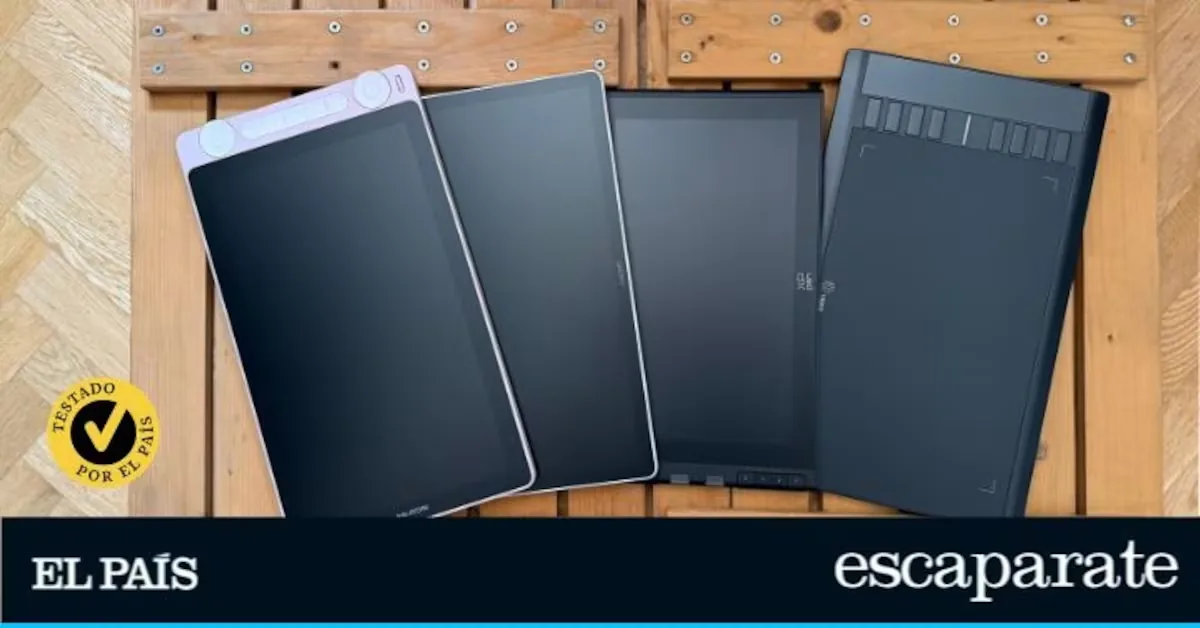
Kamvas 13
Artist 12 (3rd generation)
One 14
M708
The best graphics tablet for drawing
Drawing is a discipline that fosters imagination and creativity. And although traditionally it has been associated with paper and pencil, graphics tablets offer the option to take this practice into the digital universe. However, they do not function as an independent device with its own screen and applications, but connect to the computer and, in some cases, to the mobile phone.
Read more What recipes to prepare when it’s too hot to cook?
Graphics tablets are also characterized by incorporating a surface sensitive to movement and a digital pen to draw or write on them, detecting aspects such as tilt or pressure applied. Besides digital drawing, they are used in other areas such as photo retouching, animation, and document signing.
How we have chosen and tested the products
For this comparison, I have selected four models that cover different budgets (in this link you will find a cheap graphics tablet) but share one characteristic: they are suitable for users who want to take their first steps in digital drawing. Some of the compatible programs I have used with them are Painter and Clip Studio Paint.
These are the aspects I have considered in each of the analyses:
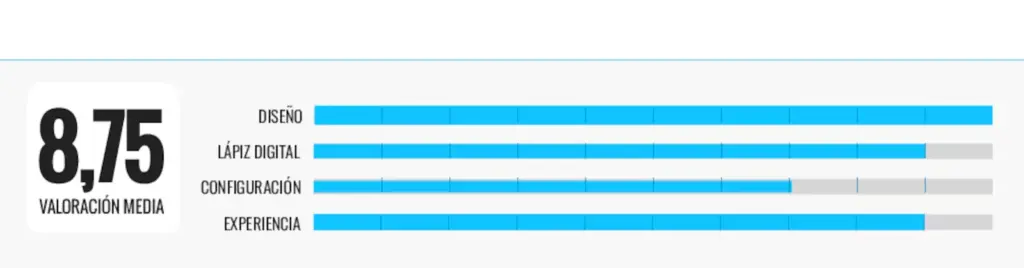
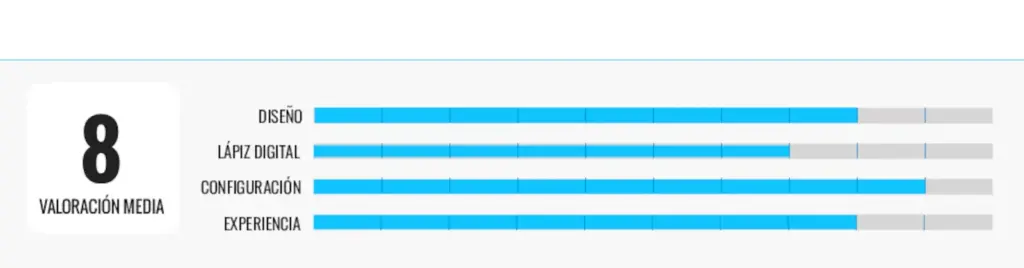
- Design: I have evaluated both the quality of the materials and the comfort of the surface on which you work.
- Digital pen: all include a stylus that works without the need for batteries. Criteria such as the feel when using it, its response, the precision when making strokes, and how it responds to pressure levels and tilt angles are important.
- Setup: how the driver installation process is, as well as the customization options provided by each manufacturer’s software.
- User experience: if the graphics tablet meets its goal and how it behaves when working with the programs used. How are the colors reproduced?
Why can you trust me?
I have been in tech journalism for two decades. During this time, I have had the privilege of witnessing how technology advances to make daily life easier and have been able to report it in various media. Although I have lost count of how many products have passed through my hands, I confess that the enthusiasm and feelings remain the same. Laptops, tablets, phones, cameras, activity trackers, smartwatches… I set no limits when choosing a device and make the most of its possibilities as a good technology consumer.
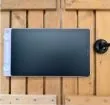
1- Android compatible: Huion Kamvas 13
Who it is for: if you need a graphics tablet that bets on customization and a high-quality digital pen.
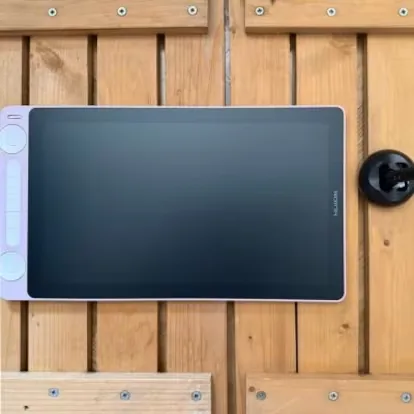
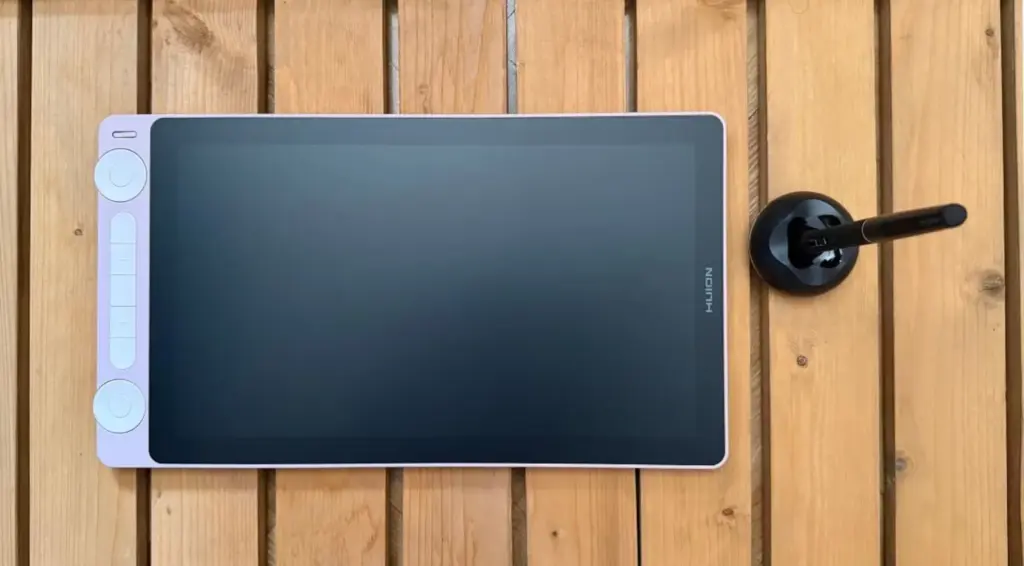
Why we chose it: among the accessories it includes, there are two that caught my attention especially. The first is the pen holder, and the second is its adjustable stand: thanks to its tilt angles, it is possible to place it in the most comfortable position, reducing wrist fatigue and promoting a more natural posture when drawing.
As expected, it is compatible with a wide variety of illustration programs, including Painter and Clip Studio Paint, which I have used. With the former, the experience was especially satisfying when using brushes that mimic traditional techniques such as watercolor, oil, or charcoal: the pen’s response allowed me to control the intensity and nuances of the stroke well. With Clip Studio Paint, the experience was different but equally positive; this program demands a lot of precision when inking, creating clean lines, or working with layers and panels.
In terms of design, it has several customizable shortcut buttons and two physical dials located on one side, which do not take up workspace. These two physical dials can be customized to perform different functions depending on the program used, although by default they serve to zoom, adjust brush size, or scroll through the canvas. The shortcut keys are also configurable, so you can assign keyboard shortcuts, mouse clicks, tools like undo or redo, open a specific program…
Its drawbacks: configuring the buttons and dials requires time. If it is your first time using a graphics tablet, the learning curve is somewhat slower at the beginning compared to other models.
| MORE USEFUL INFORMATION |
|---|
| Compatibility: Windows, mac, Linux, Android (USB 3.1 GEN 1). |
| Pen: model PW517, battery-free, 8,192 pressure levels, tilt support, ±60°, detection support 10 mm, 8 programmable pressable buttons. |
| Others: workspace 293.76 × 165.24 mm, supports USB-C to HDMI and USB-C to USB-C connection, PenTech 3.0 technology, pen holder. |
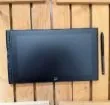
2- Dual dial: XPPen Artist 12 (3rd generation)
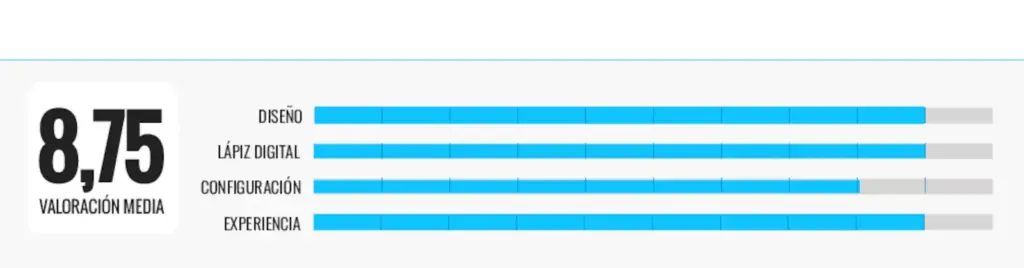
Who it is for: due to its wide compatibility with different operating systems, it is a recommended option for those who do not always work in the same environment.
Why we chose it: a detail that adds comfort to this proposal is that it includes a foldable stand. This accessory allows placing it at a more comfortable angle for drawing and avoids having to use it completely flat on the desk, a position that can be less ergonomic after several hours of use.
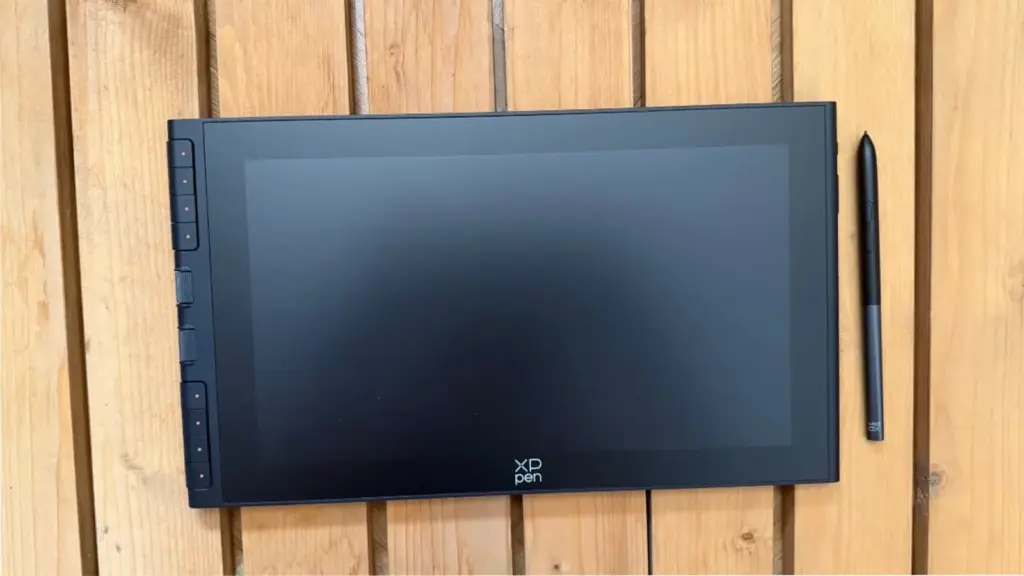
In terms of design and build quality, it receives a positive rating. Its construction pays great attention to detail, and the left side immediately draws attention because it concentrates all its controls: eight customizable shortcut keys and the so-called X-Dial with two dials. From here, you access the usual settings, such as zooming in and out of the canvas or modifying stroke thickness, without leaving the workspace.
Its 11.9 inches provide a balanced workspace, and when drawing, everything feels quite natural thanks to the surface texture, which provides some resistance to the pen and prevents it from sliding excessively; thus, control over movements is greater. This pen, beyond its 16,384 pressure levels, helps you control (also with good results) the intensity of strokes. Colors are vivid and with precise color representation, allowing better appreciation of details.
Its drawbacks: I missed that it does not include a pen holder.
| MORE USEFUL INFORMATION |
|---|
| Compatibility: Windows, macOS, ChromeOS, Windows ARM, Android 10.0 or later. |
| Pen: X4 optical pen with smart chip, EMR technology (battery-free), 60º tilt, ±0.2 mm accuracy, 10 mm reading height, 16,364 pressure levels, initial activation force of 2 gr. |
| Others: workspace 264.0 x 149.0 mm, USB-C, 10 pen nibs, nib replacement tool, glove, cleaning cloth, foldable stand, continuous dimming that automatically adjusts brightness based on ambient lighting. |
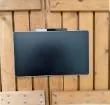
3- Anti-reflective coating: Wacom One 14
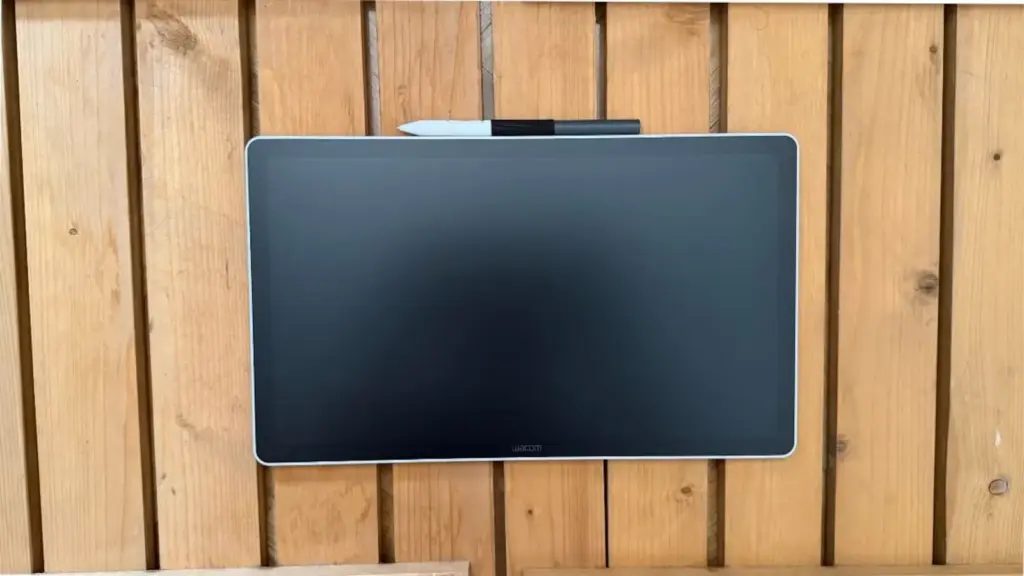
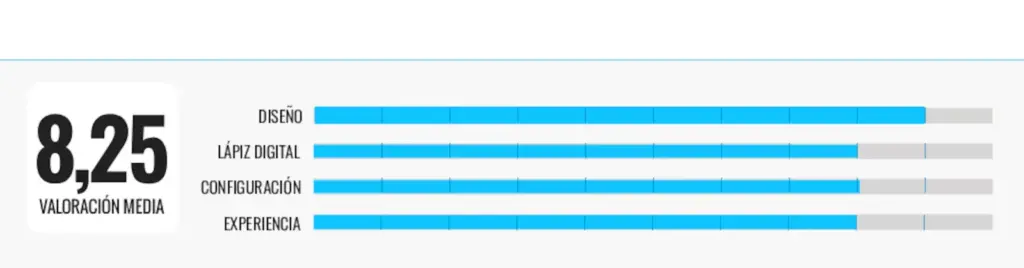
Who it is for: users who need a graphics tablet that guarantees good results and also integrates a large screen.
Why we chose it: it features a sober and minimalist design where all attention falls on its 14-inch screen, which offers a generous workspace allowing you to work comfortably. Meanwhile, all its physical controls are concentrated on one side, where the USB-C port that connects it to the computer with the included cable is also located. From here, I accessed the power button, the one that opens the on-screen settings menu, and the LED status indicator: it informs, among other things, if the tablet is on, has entered sleep mode, if the pen is in use mode… I also positively rated the surface treatment, which is anti-reflective and fingerprint-resistant.
As with any graphic screen for drawing, the pen is the key element of the entire experience; a practical detail is that the screen itself has a holder at the top to store it when not in use, thus preventing it from rolling to unexpected places or getting lost. Using it with some of the programs it includes by default, I felt comfortable from the first strokes and it met my expectations, even though (for example) its 4,096 pressure levels are lower than those of other models. You can customize its buttons and it detects tilt without problems.
Its drawbacks: it is the most expensive model in the comparison.
| MORE USEFUL INFORMATION |
|---|
| Compatibility: Windows, macOS, and ChromeOS. |
| Pen: Wacom One Standard Pen, with 4096 pressure levels, ±60° tilt, customizable. |
| Others: Clip Studio Paint Pro, Magma, Concepts, Foxit PDF Editor, Skillshare, USB-C cable, 3 replacement nibs, nib remover, workspace 309 x 174 mm. |
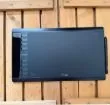
4- The most affordable: Ugee M708
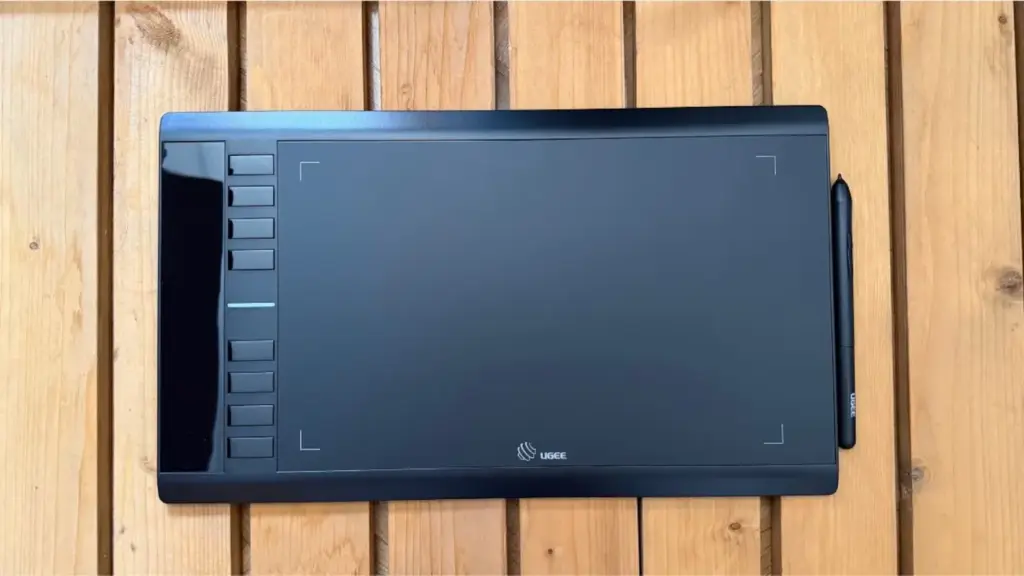
Who it is for: if you are considering buying an affordable but functional graphics tablet for drawing.
Why we chose it: I did not have any special difficulty getting it started, although, as with most tablets of this type, it is necessary to spend a few initial minutes installing the driver before using it. The process begins by downloading the driver from the manufacturer’s website and, after completing its installation and restarting the computer, just connect it for automatic recognition.
From the configuration software, you customize different parameters to adapt the experience to your needs: assign functions to shortcut buttons, modify the active work area, or adjust the pen pressure sensitivity, among other options. It also includes a test area useful for checking that the different pressure levels are detected correctly before starting to draw or edit in applications like SketchBook, which I used in the tests.
Although there are models with larger screens and work surfaces, its active area provides a good balance between size and comfort. For example, you can make long strokes quite freely without having to lift your hand continuously.
Its drawbacks: it uses microUSB instead of USB-C, an older connection. The experience with the pen has been correct, but I noticed a few occasional glitches: on a couple of occasions, it got stuck and it was necessary to wait a few minutes to use it again.
| MORE USEFUL INFORMATION |
|---|
| Compatibility: Windows, macOS, Chrome OS, Linux. |
| Pen: battery-free model with 8,192 pressure levels and 60º tilt and 10 mm reading height, customizable buttons. |
| Others: workspace 254 x 152.4 mm, battery-free pen holder, eight replacement nibs, glove, microUSB, eight shortcut keys. |
Other interesting graphics tablet models
If you are looking for a high-end graphics tablet for drawing with an XXL screen
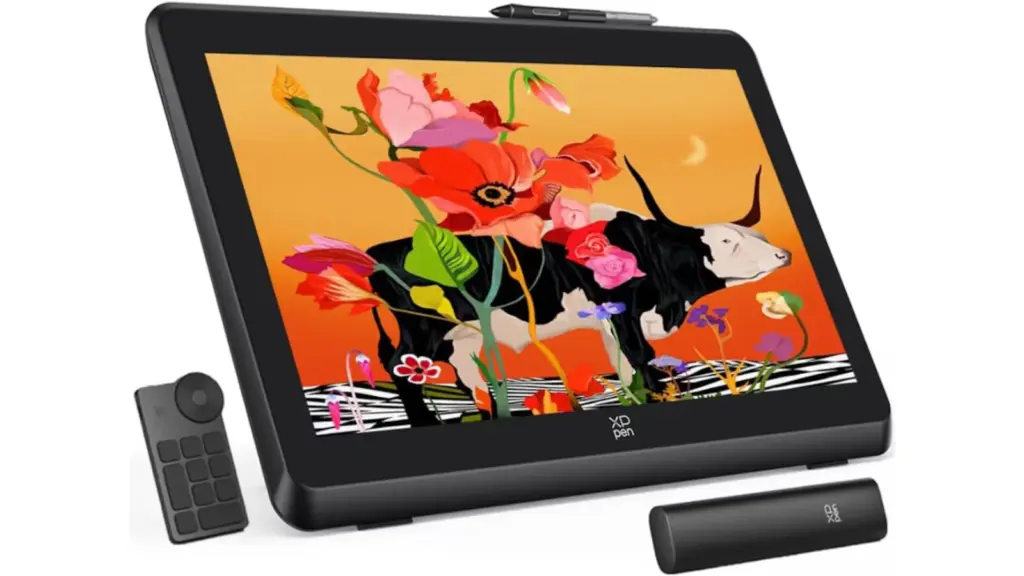
The XPPen Artist Pro 22 model integrates a 21.5-inch panel with 2,560 x 1,440 pixels resolution, and is available along with a Bluetooth keyboard.
Frequently asked questions about graphics tablets for drawing
How many pressure levels are recommended in a graphics tablet?
Pressure levels determine the digital pen or stylus’s ability to detect the force applied on the screen when drawing. The more levels it has, the greater the variety of intensities it captures, which helps create more precise and natural strokes.
With which programs is it possible to use a graphics tablet for drawing?
They are usually compatible with the main design, illustration, and digital editing applications such as Adobe Photoshop, Illustrator, Clip Studio Paint, Corel Painter, SketchBook…
Can it be used for purposes other than drawing?
Yes. It can be used to edit photos, create designs, make annotations, sign documents, or handle some computer functions with greater precision than a mouse.
Do you have to install any program or driver to use a graphics tablet?
Generally yes, and this allows better use of its possibilities. By doing so, you customize its buttons, adjust pen sensitivity, or configure the workspace, among others.
What is the purpose of the digital stylus tilt recognition?
Tilt recognition allows the tablet to detect the angle at which the pen is placed on the surface. This function also brings the experience closer to traditional drawing, as some digital brushes adapt the stroke according to the pen’s tilt, reproducing techniques like pencil, charcoal, or brush with greater fidelity.
What maintenance is necessary?
It is recommended to clean the surface periodically with a soft cloth, avoid unnecessary impacts or pressure, and change the pen tip when worn. Also, keeping the driver updated ensures proper functioning.
[Remember that if you are an Amazon Prime user, all purchases have free shipping. Amazon offers a free and commitment-free trial period for 30 days.]
*All purchase prices included in this article are updated as of August 18, 2026.
You can follow EL PAÍS ESCAPARATE on Instagram, or subscribe here to our Newsletter.
Read more Can the existence of the afterlife be proven? Scientists who go in search of God